Getting Started
Aether is a node-graph audio tool: patch oscillators, filters, and samplers together, modulate with envelopes and LFOs, sequence with the sequencer or arranger, and hear the result live. This page walks through the first ten minutes.
Prerequisite: Aether installed and launchable. See Installation if that is not done.
First Launch
A first-run modal explains four things about the 0.1.0 demo: .aether files and the Rhai scripting API are not guaranteed to stay compatible across releases; audio defaults to your system output and can be changed in Preferences; Aether checks voidrealm.com on startup for newer builds; and feedback goes to hello@voidrealm.com. Dismiss with Got it - the acknowledgement is persisted, so the modal doesn't return on future launches.
The welcome overlay appears next on an empty canvas:
- Open Project… - pick a
.aetherfile from disk. The dialog defaults to~/Documents/Aether Projects/(created on first use). - Start Blank - dismiss the welcome and begin with an empty canvas.
Both buttons dismiss the overlay; once dismissed, a marker file at ~/Library/Application Support/aether/welcome-dismissed keeps it from reappearing on future launches. Delete that marker to bring the overlay back.
First Sound
The shortest path to audio is a two-node chain: a source that produces a continuous signal, connected to the audio output.
- Add an oscillator. Press
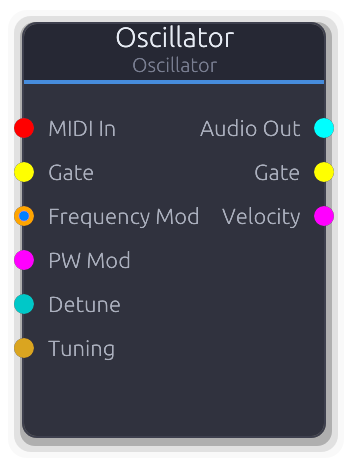
Space Spaceto open the command palette, type "Oscillator", press Return. AnOscillatornode appears on the canvas. It produces a tone at its default frequency - no MIDI, no gates needed.
- Use the existing audio sink. A fresh canvas already has an
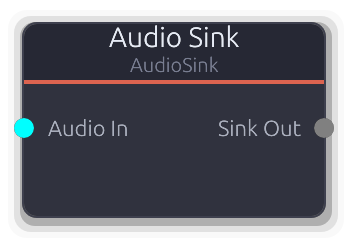
AudioSinknode - the engine spawns one at startup because it's the terminator the audio thread pulls from. Don't create a second one: the audio pull is pinned to the firstAudioSinkand won't redirect to a newly-added one until the graph is reloaded. - Connect them. Click and drag from the Oscillator's
Audio Outoutput port to the existing AudioSink'sAudio Ininput port. A tone reaches the speakers the moment the connection completes - Oscillator is free-running and does not require the transport to be playing.
Adjust Frequency on the Oscillator's properties panel - the pitch follows immediately. Waveform switches between Sine, Square, Sawtooth, and Triangle.
If nothing plays, open Preferences (Cmd-,) - the output device may need to be picked explicitly. See Audio Device Setup.
Some source nodes - Polysynth, SamplePlayer, DrumVoice - need MIDI notes or gate triggers to drive them. They stay silent on their own. Building Your First Sound introduces the note-driven chain that wakes those up.
Saving the Project
Cmd-S saves; on the first save for a fresh project, it falls back to the Save As dialog so you can pick a name under ~/Documents/Aether Projects/. The file is written as a .aether redb database containing the graph, samples, sequences, presets, patches, playlists, MIDI devices, and embedded scripts. Subsequent Cmd-S saves overwrite the same file and show a "Project saved" toast.
Opening the project again restores every connection and property. Note: .aether files from 0.1.0 are not guaranteed to open in future builds. For patches worth keeping long-term, save them as Rhai scripts instead - see Running Scripts.
Where Things Live
- Projects.
~/Documents/Aether Projects/by default, configurable via the native file dialog. - Scripts. Inside the app bundle at
Contents/Resources/scripts/(read-only) and optionally registered paths elsewhere. - Settings.
~/Library/Application Support/aether/settings.json. Hand-edit if needed. - Logs and crash reports.
~/Library/Logs/Aether/. See Crash Reports if something crashes.
Next
- Building Your First Sound - extend the three-node chain with modulation, filters, and envelopes.
- Audio Device Setup - pick a specific output device and buffer size.
- Running Scripts - automate patch construction with Rhai.