Building Your First Sound
Getting Started covered the minimum chain: Oscillator → AudioSink - a continuous tone out of the box. This page adds two common-case extensions: shaping that tone with a filter and LFO, then driving a MIDI-based synth from a sequencer so actual notes play.
Filter: Timbre
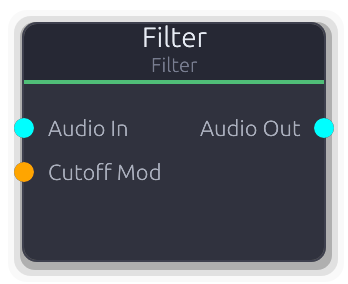
A filter carves frequency content out of a signal. The one-pole Filter is the simplest low-pass - bright below a cutoff, muffled above.
- Drop a
Filternode. Disconnect the direct Oscillator → AudioSink edge, connect OscillatorAudio Out→ FilterAudio In, then FilterAudio Out→ AudioSinkAudio In. - Drag
Cutoffwhile the tone plays to hear the shape change.
For resonance and other filter modes (high-pass, band-pass, notch), use Biquad instead (shows as "Biquad Filter" in the palette) - its Type property selects the mode and it has a Q parameter for resonance.
LFO: Motion
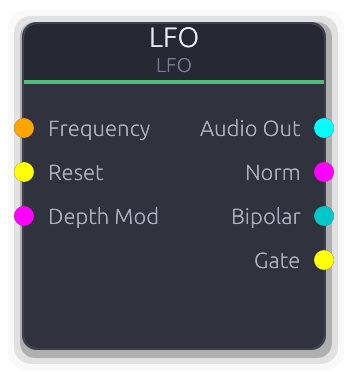
A Low Frequency Oscillator moves a parameter slowly, adding movement. LFO is free-running - it produces modulation continuously as soon as it exists on the canvas.
Aether validates modulation connections by port type: an LFO output can only plug into an input of a matching type. The LFO's Bipolar output (ControlBipolar, swinging -1..+1) pairs cleanly with the Oscillator's Detune input, which expects ControlBipolar - the result is vibrato.
- Drop an
LFOnode. - Connect its
Bipolaroutput to the Oscillator'sDetuneinput. (Detuneis an input port, not a property - its value comes entirely from the connected signal.) - Adjust the LFO's
Frequencyproperty (rate of the vibrato) andDepthproperty (how much the LFO output swings, which scales how far the pitch moves). Slow rate + shallow depth = expressive breathing. Fast rate + heavier depth = deeper pitch wobble.
The chain so far:
Oscillator ─► Filter ─► AudioSink
    ▲
    │
   LFO  (Bipolar → Detune, vibrato)
Save the project (Cmd-S) before moving on.
Notes: MIDI-Driven Synths
The Oscillator is a convenient starting point but it plays one pitch forever. To play melodies:
Polysynthis MIDI-driven (polyphonic, consumes a MIDI stream on itsMIDI Inport).DrumVoiceis triggered by either a raw Gate signal or a MIDI NoteOn.SamplePlayeris gate-driven (one-shot sample playback triggered by a rising edge on itsGateinput, with optionalPitchcontrol).
All three produce audio only while triggered.
The note source can be the Keyboard node (click keys on the canvas, or pass-through from any upstream MIDI), the SequencerEditor (grid-based patterns with an audition MIDI output), or a hardware MIDI controller routed through a virtual device (see MIDI Setup).
Keyboard → Polysynth
- Drop a
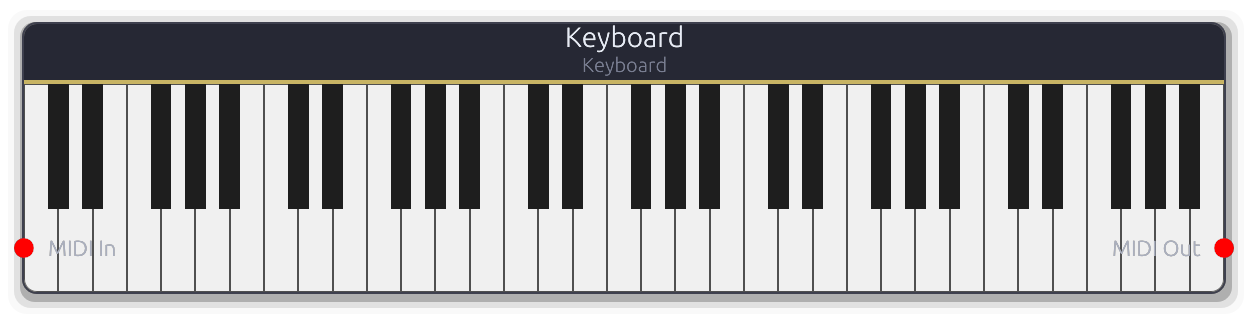
Keyboardnode - an 88-key piano on the canvas. - Drop a
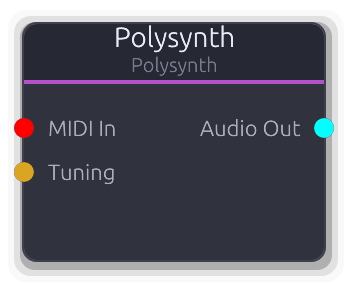
Polysynthnode. - Connect Keyboard
MIDI Out→ PolysynthMIDI In. - Connect Polysynth
Audio Out→ AudioSinkAudio In(replacing the Oscillator output if it is still connected). - Click keys on the Keyboard node body - notes play through Polysynth immediately.
The Keyboard also passes through MIDI from any node wired into its MIDI In, so a hardware controller routed into it plays the same synth while the clicked keys and the incoming notes both light up on the visualisation.
Polysynth has its own per-voice amplitude envelope - no separate AmpEnvelope node is needed to get notes that start and stop cleanly.
Sequencer Editor → Sequencer → Polysynth
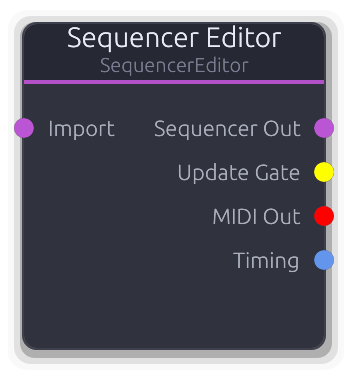
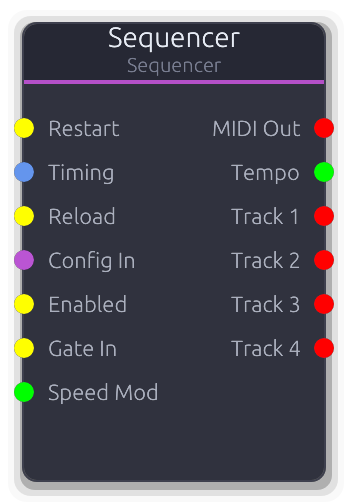
For patterns rather than live play, use the SequencerEditor + Sequencer pair. The editor node hosts the grid UI where you place notes; the playback node reads the editor's output and emits MIDI as the transport advances:
- Drop a
SequencerEditornode. - Drop a
Sequencernode. - Connect SequencerEditor
Sequencer Out→ SequencerConfig In. - Connect SequencerEditor
Timing→ SequencerTiming. - Connect Sequencer
MIDI Out→ PolysynthMIDI In. - Double-click the SequencerEditor body to open its editor panel and place notes.
- Press Play on the transport. The Sequencer advances through the pattern and drives Polysynth.
The SequencerEditor also has its own MIDI Out port, but that's an audition channel - it only emits MIDI when you click a note in the editor UI for preview, not during transport playback. Drive the synth from the Sequencer node, not from the editor's MIDI Out.
Drums
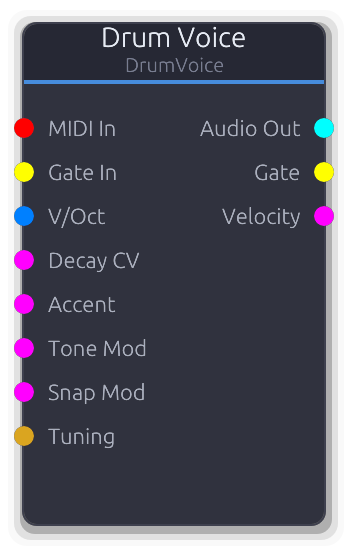
DrumVoice plays one drum per instance (pick Kick, Snare, Hihat, etc. on its Mode property). It accepts MIDI on its MIDI In port - each note-on triggers a hit. Route a Keyboard, Sequencer, or hardware MIDI source in the same way as the synth examples above.
For a full kit, instance one DrumVoice per drum and mix their audio outputs through a Mixer before the sink.
Next
- Running Scripts - build patches like these programmatically rather than by hand.
- MIDI Setup - hardware controllers and virtual devices.
- Working with Projects - save the chain, reload it, back it up as a script.
- The node reference covers every parameter on every node.